
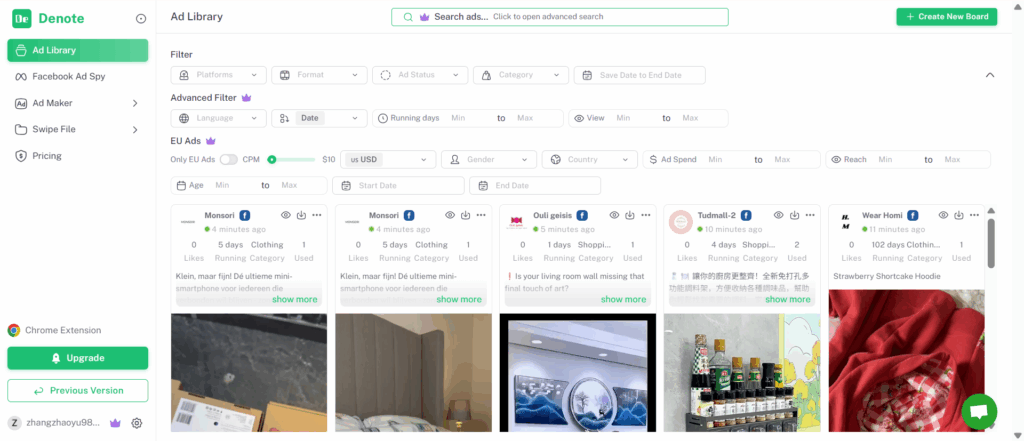
When running ads across multiple brands or platforms, it’s easy to get lost in the noise. Denote Ad Library helps you stop guessing and start seeing what’s actually working. From filtering ads that match your criteria, to saving and downloading creatives, exporting data, and even using AI-powered transcripts, this guide walks you through all the key features. You’ll learn how to quickly find the ads worth analyzing, organize your research, and turn inspiration into actionable insights—all in one place.
Use Filters to Find the Ads That Matter
When you visit the Denote website, you’ll land in the Ad Library. Here, you’ll find a wide range of filters, including:
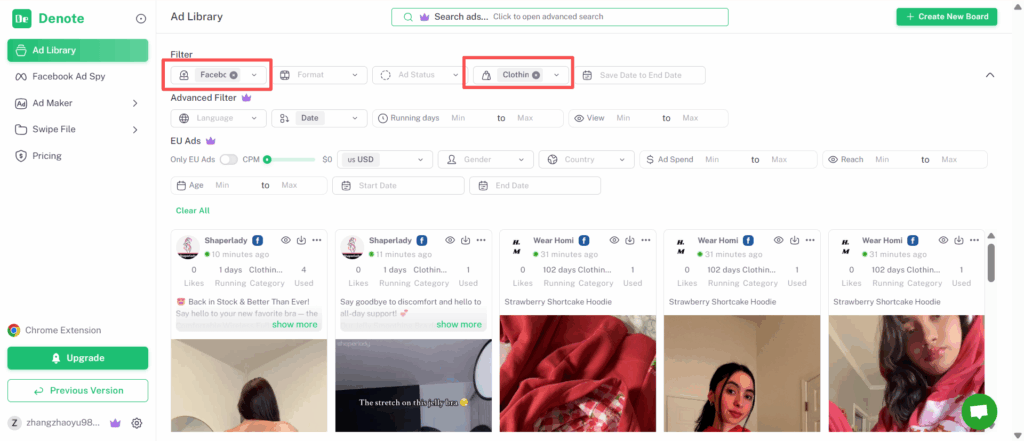
Category Filter Limitations
To use the Category filter, make sure you’ve selected Facebook Ad Library as the platform.
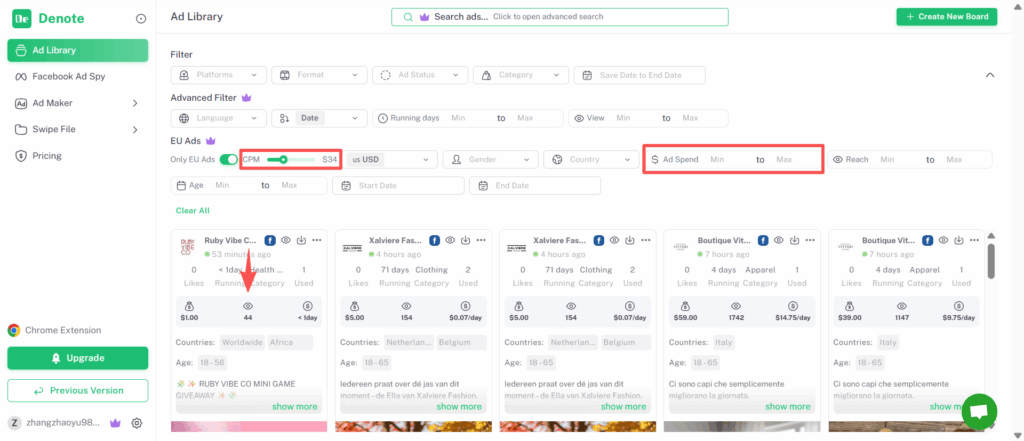
Ad Spend Supported Regions
Currently, Ad Spend data is only available for ads running in European Union (EU) countries. You can enable Only EU Ads to view ads that support ad spend data.
When you enable the “Only EU Ads” option, you can drag the CPM slider to see the total spend and daily cost. You can also filter ads based on the maximum or minimum ad spend to find content that meets your needs.
Save and Download Ads You Want to Reuse
How to Save Ads?
Step1
If you’re a new user, you can create a new borad by clicking “Create New Board” in the top-right corner. If you don’t need to organize your assets, you can simply save them to the default board.
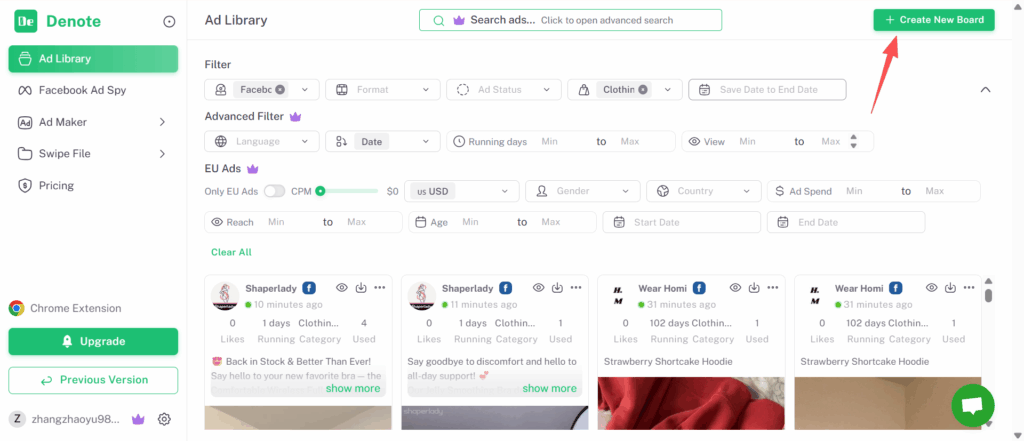
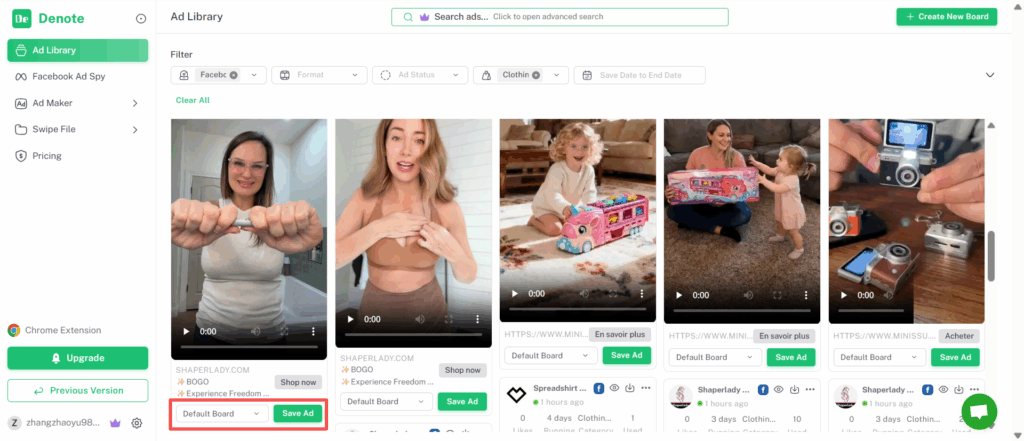
Step 2:Save Ads
Below each ad, you can select the board where you want to save it, then click “Save Ad” to store the ad.
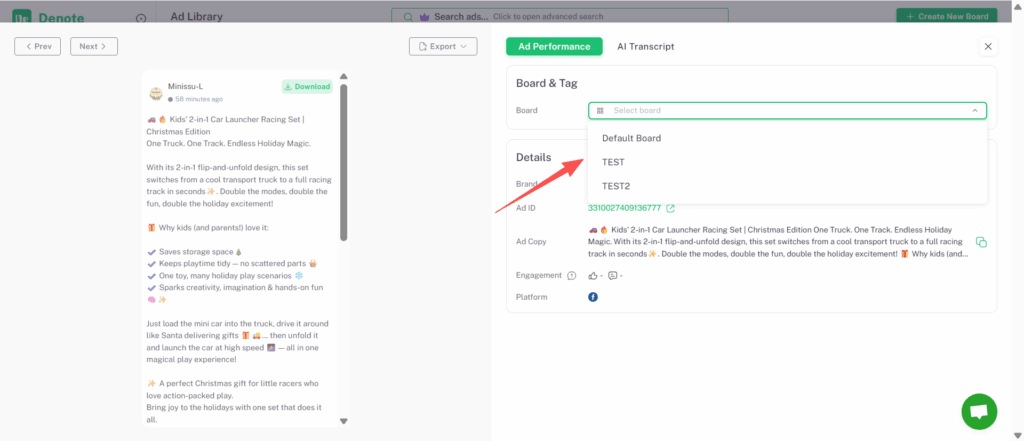
Alternatively, you can open the ad details page and choose the board where you want to save it in the “Board and Tag” section.
How to Download Ads?
Way 1
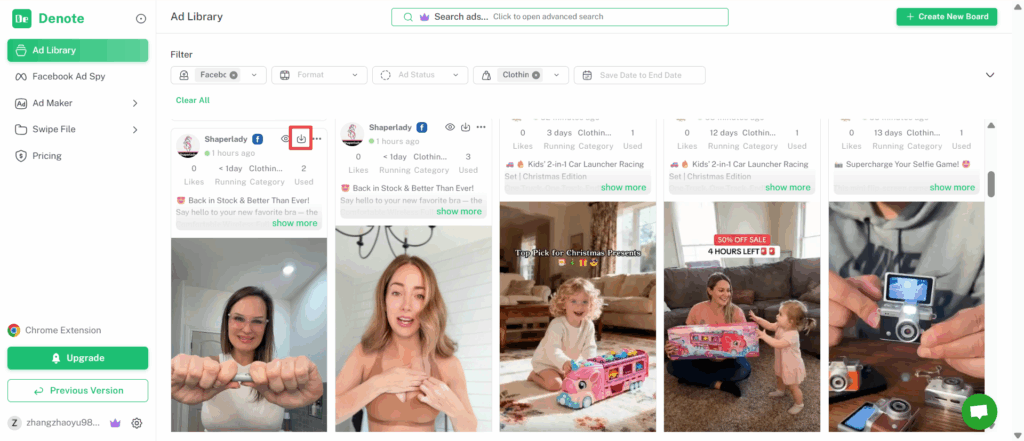
Click the download icon in the top-right corner of the ad to download the image or video.
Way 2
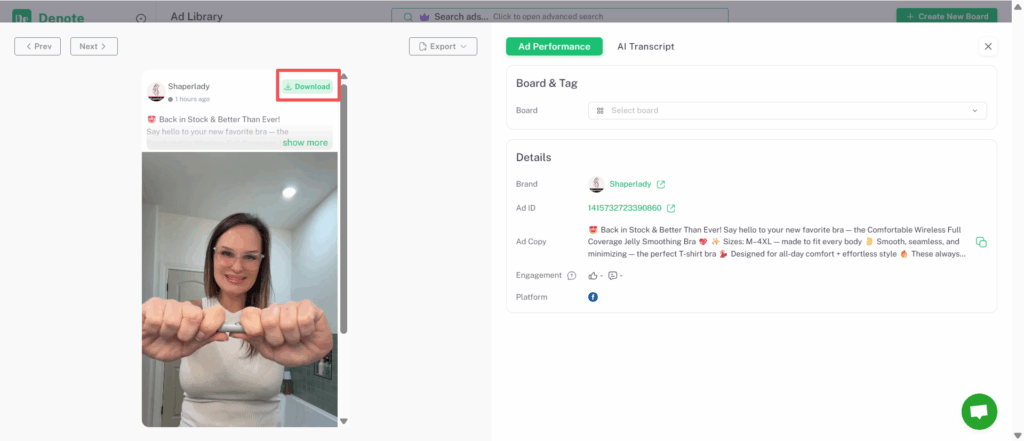
You can also download the ad image or video from the ad details page.
Export Ads Data for Deeper Analysis
To export a poster, CSV, or poster with data, click the icon in the top-right area above the ad. You can get the information in the format you need.
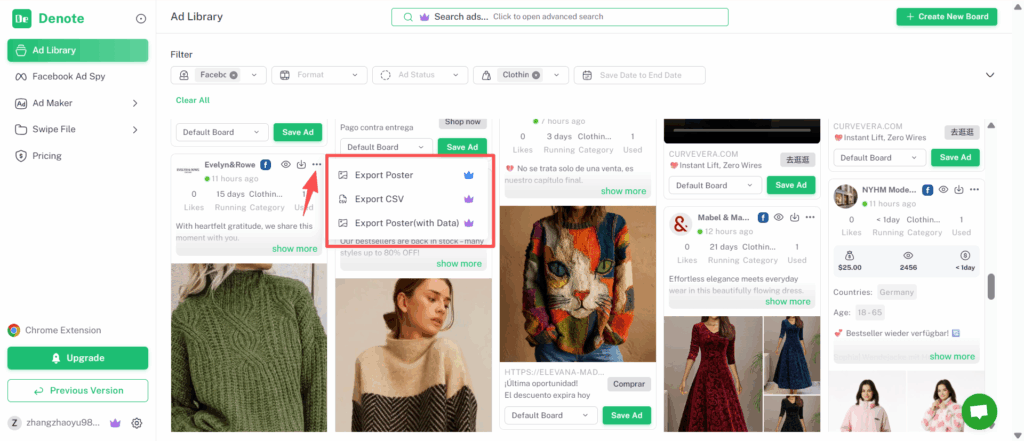
The CSV file includes the following data:
- Ad ID
- Brand Name
- Ad Copy
- Content Type
- Platform
- Ad Link
- Categories
- Activity Status
- Time Running
- Landing Page
View More Details About Any Ad
Here, you can view some basic information, including likes, running days, category, and usage.
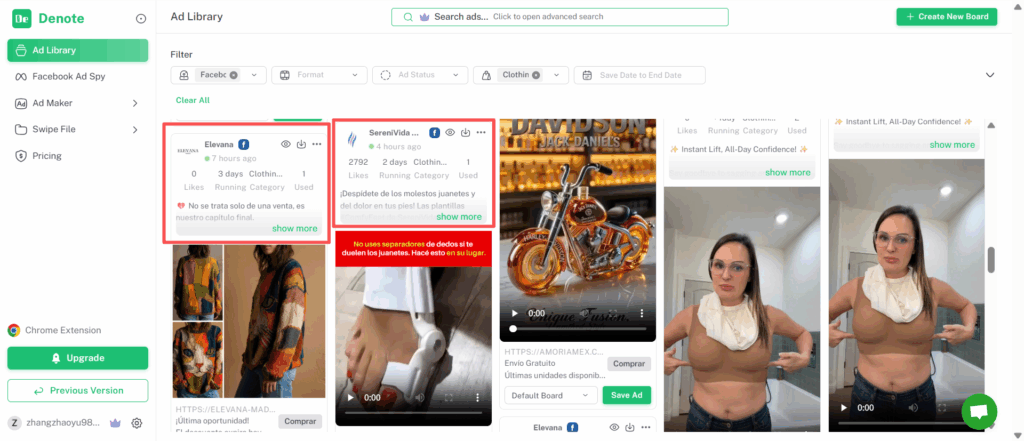
To see more information, click “Show More” or the eye icon to view additional ad details.
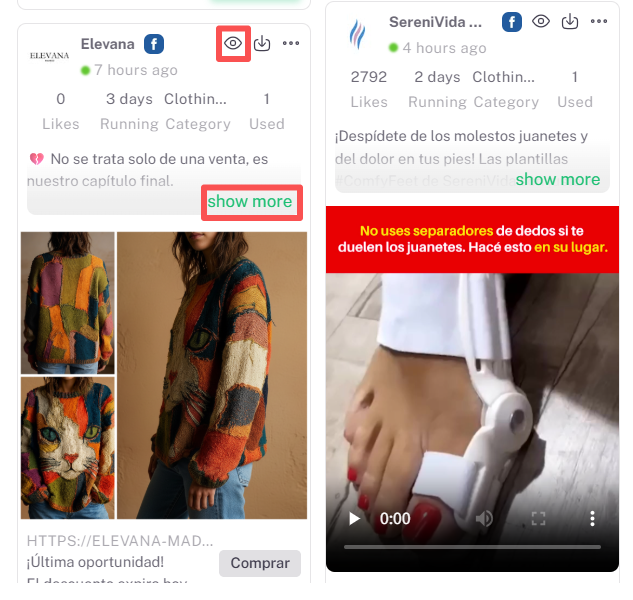
This includes data such as ad copy, images, videos, brand, Ad ID, engagement, platform, and more. Please note that engagement data is based on when it was saved and does not currently support real-time updates.
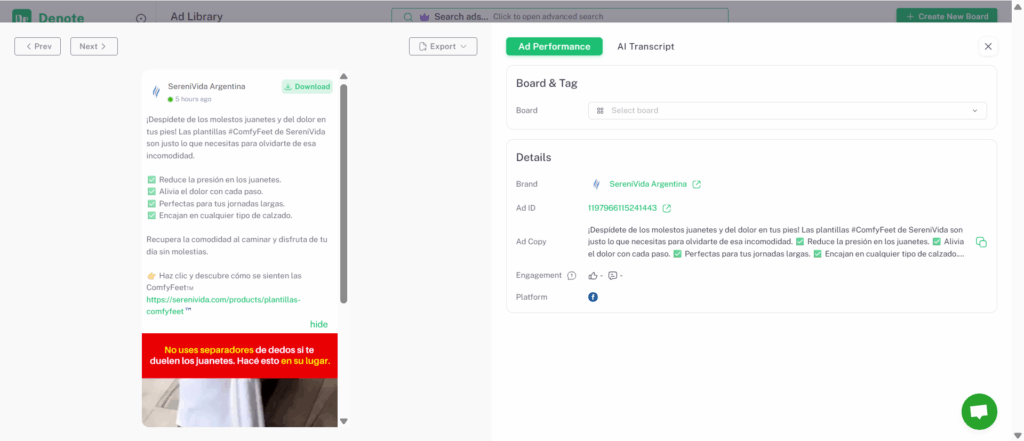
You can also navigate directly to the product landing page by clicking:
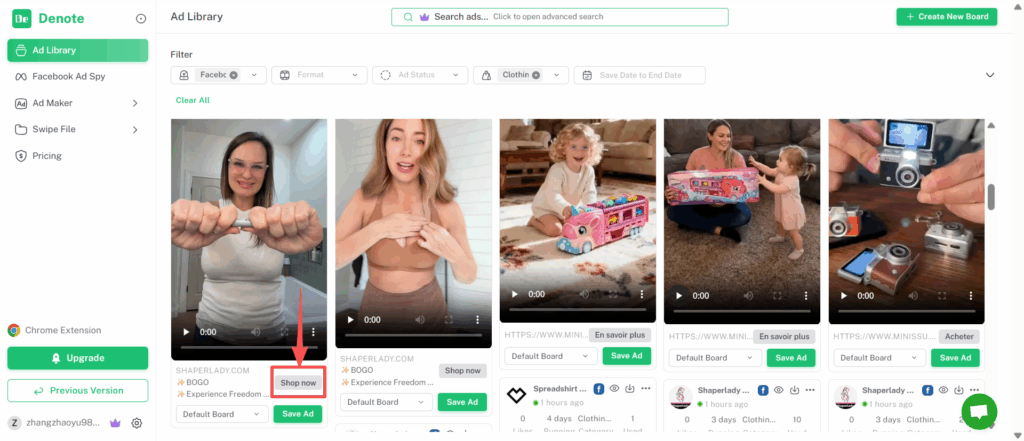
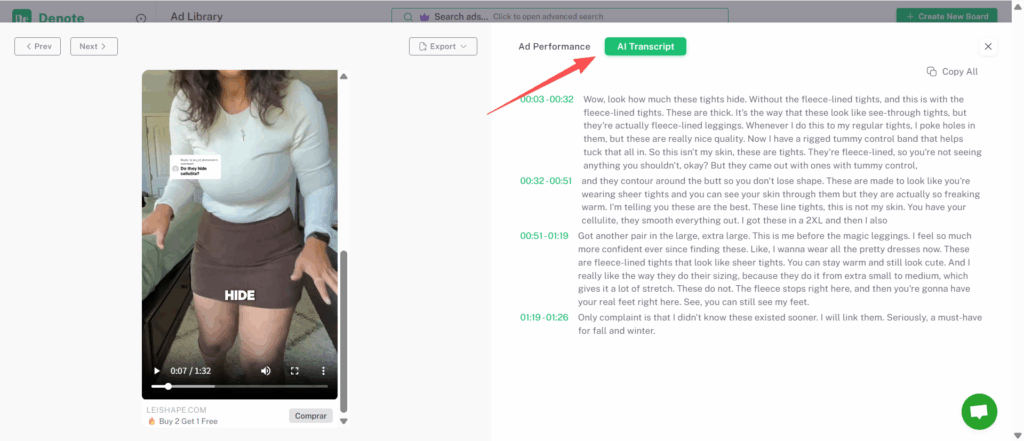
AI Transcripts and Built-In AI Tools
Open the ad details page, then click “AI Transcript” to automatically generate a transcript of the video ad. Denote supports transcripts in multiple languages, making it easier to analyze ad messaging, extract key hooks, and understand creative strategies across different markets—without watching the video frame by frame.