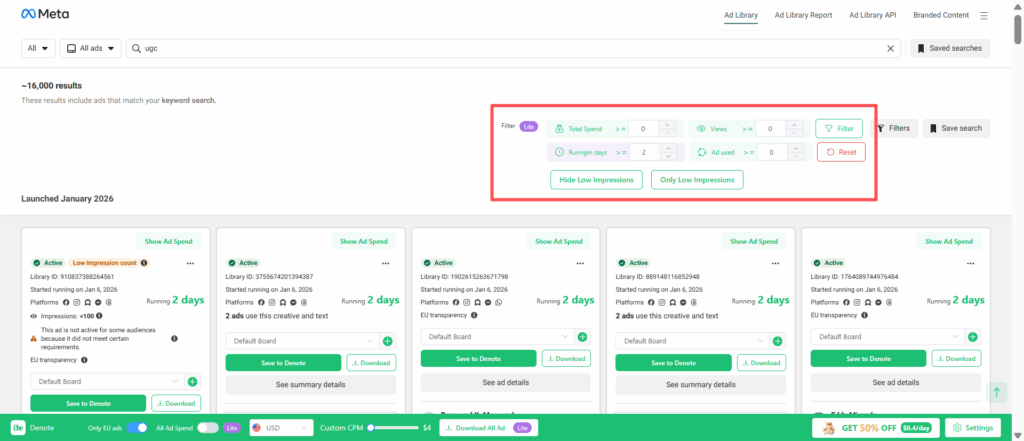

Denote Extension is built to help you move faster when researching ads. Instead of jumping between platforms, taking screenshots, or losing track of links, it puts everything you need in one place. From saving and downloading ads to analyzing ad spend and filtering for what actually matters, this guide walks through how to use Denote Extension to turn scattered inspiration into insights you can act on.
The platforms and ad types we support include:
- Facebook Ad
- TikTok Ad
- Instagram Ad
- LinkedIn Ad
- YouTube Ad / Shorts
Get the Denote Extension Set Up in Minutes
If you want to download ads from different platforms, you first need to install the Denote Extension. Here’s how to do it:
On the Denote homepage click Install Extension, then select Add to Chrome. Alternatively, you can install the Denote Extension directly from the Chrome Web Store.

Save and Download Ads You Actually Want to Reuse
Save and Download Ads from Facebook Ad Library
After installation, open the Facebook Ads Library and click Log In to sign in with your Denote account.
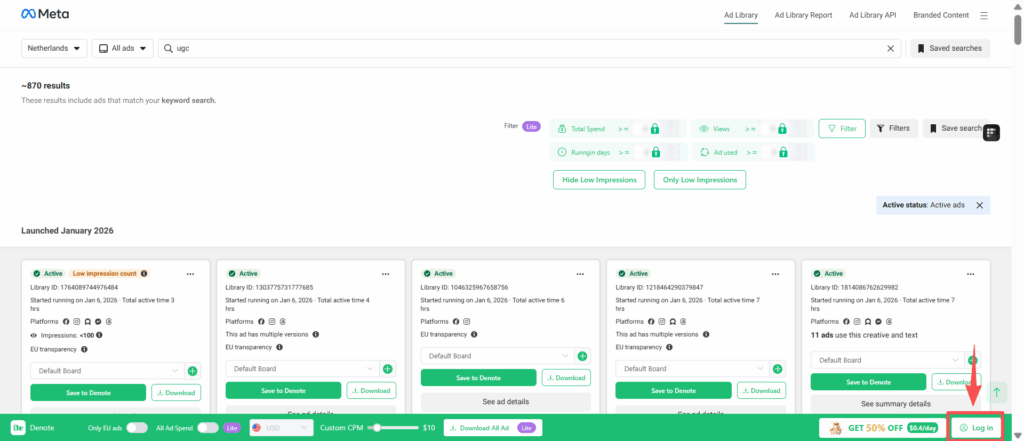
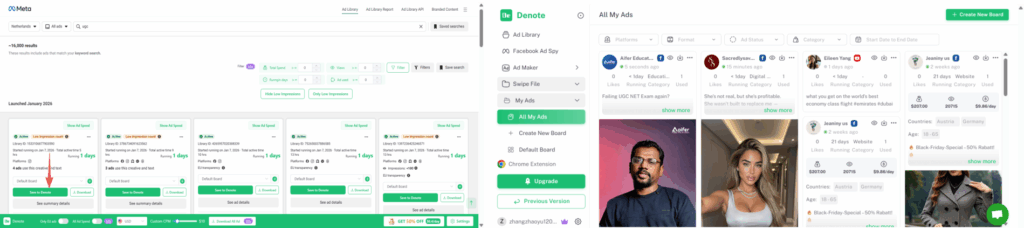
Way 1: Save Ads to All My Ads for Easy Download and Reuse
If you want to save an ad, click Save to Denote, then click View Saved to find it later in Denote All My Ads.
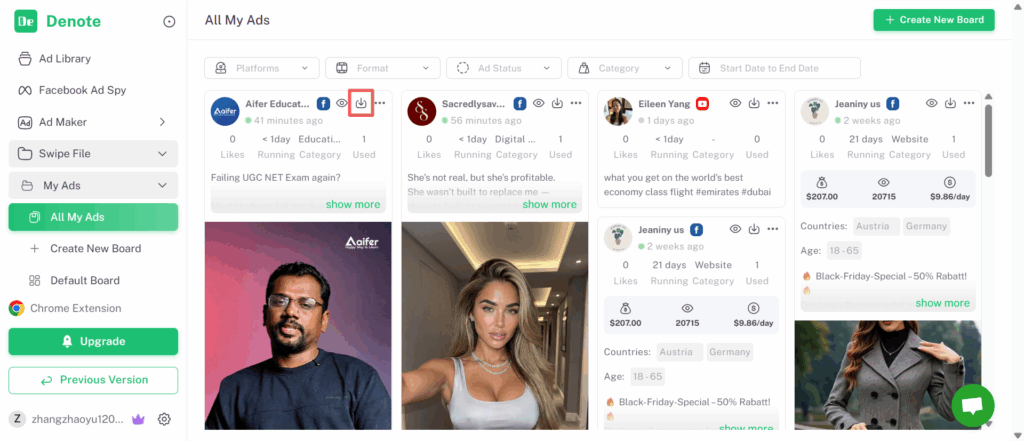
Then, click the download icon to download the ad.
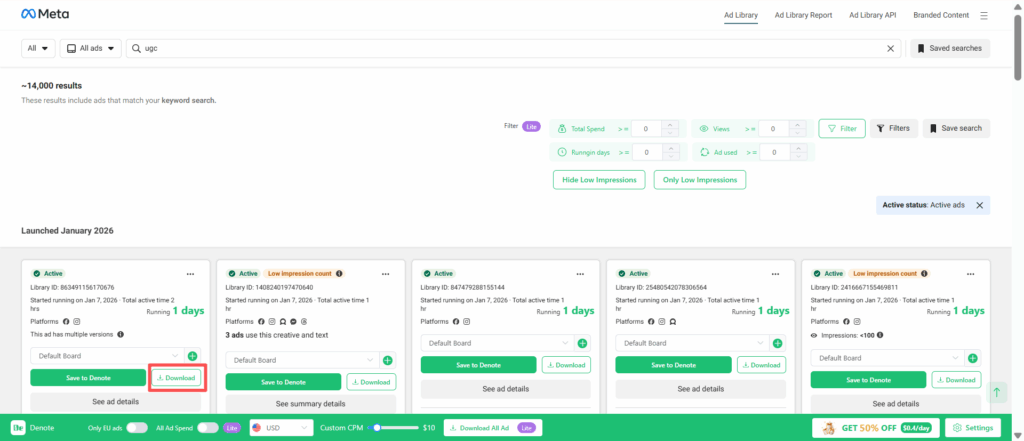
Way 2: Download Ads One by One
If you only need to download one or a few ads, click Download to save an individual image or video ad.
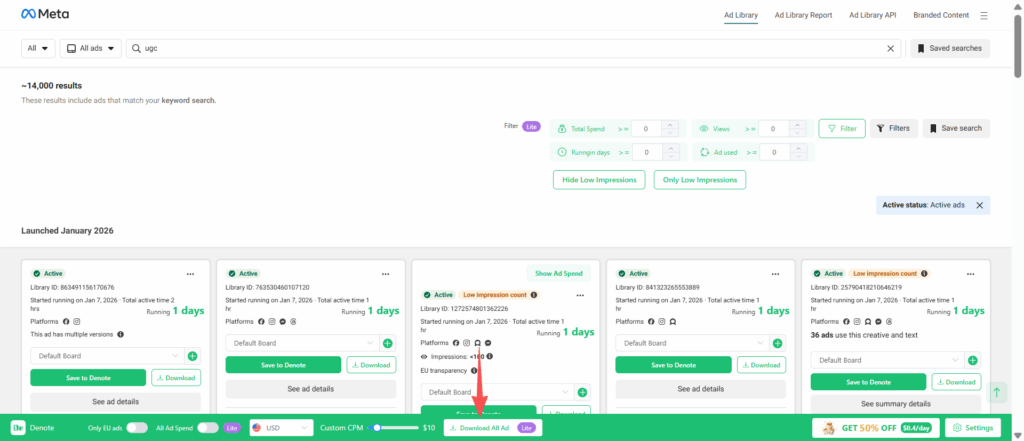
Way 3: Download All Ad
You can filter the ads you need first, then click Download All Ads to download all filtered creatives or all ads on the current page with one click.
Save and Download Ads from TikTok, Instagram, and More
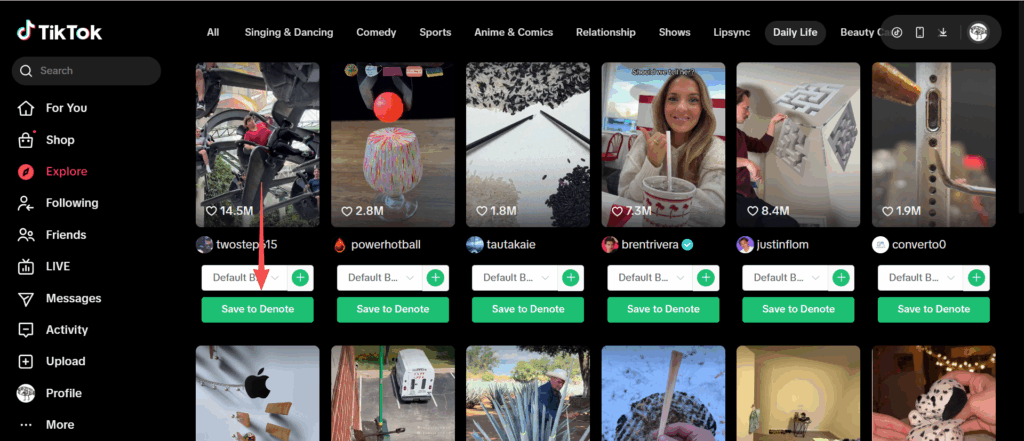
Step 1: Save Ads to My Ads Space
After installing the Denote Extension, open TikTok and click Save to Denote. Select a board or folder to keep your ads organized.
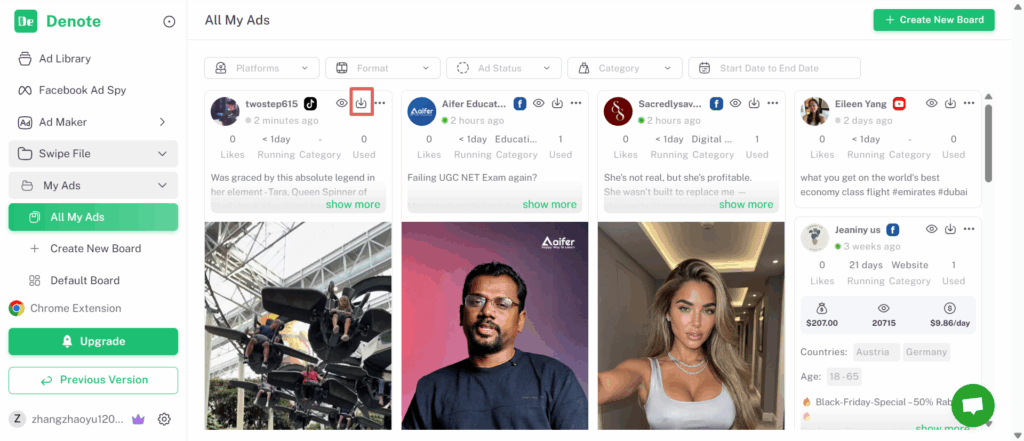
Step 2: Download Ads
Click the download icon to download the selected ad.
Predictable Ad Spend Helps You Spot Ads Worth Scaling
View All Ad Spend Across Ads and Brands
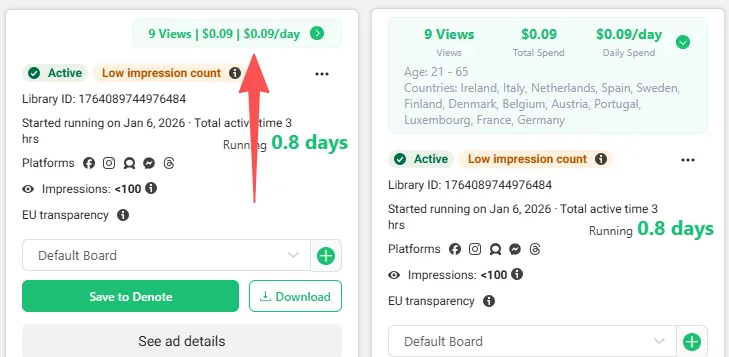
Click the green bar at the top of the ad details to see more information. Here, you can view the ad spend and the number of views for each ad.
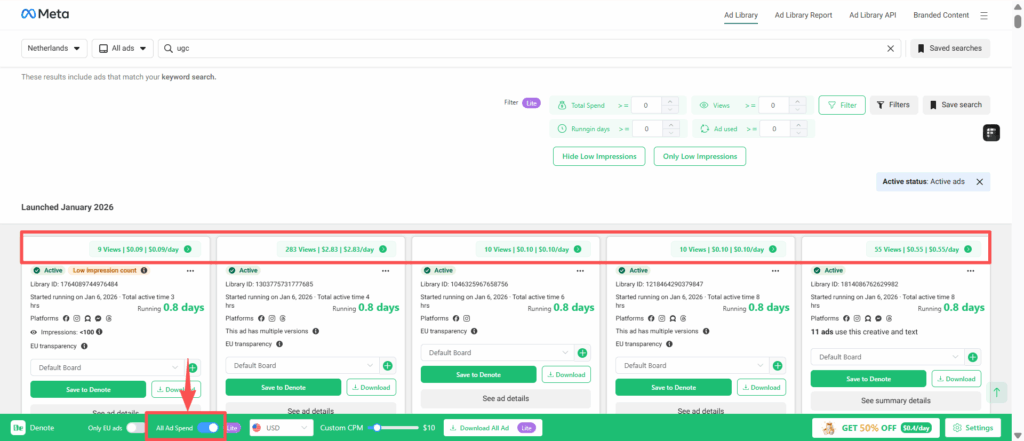
If you don’t want to click Show Ad Spend for each ad individually, Denote Extension makes it easy to see everything at once.
Simply enable the option below, and all ad spends across your saved ads and brands will be displayed in a single view. This way, you can quickly spot high-performing campaigns, compare budgets, and get a complete picture of how brands are allocating their ad spend.
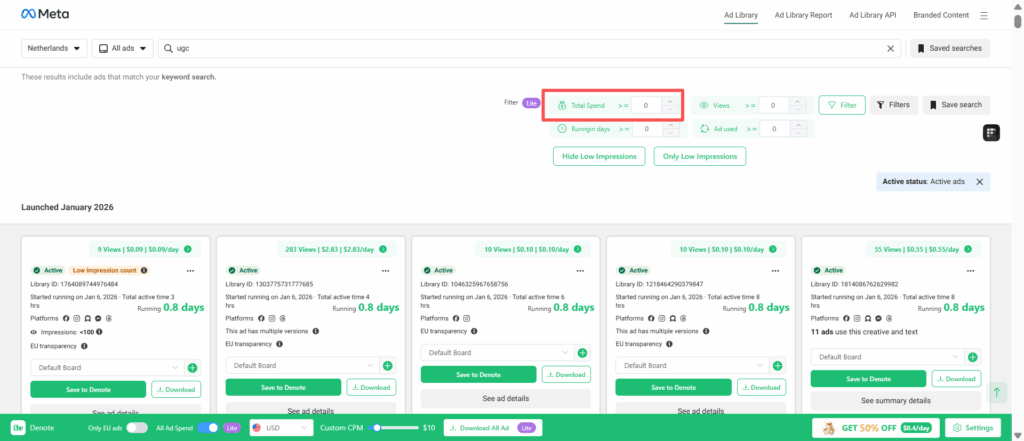
Filter Ads by Spend for Faster Research
If you want to focus on ads within a specific budget range, simply enter your desired spend amount or range in the filter, and the tool will instantly show only the ads that match your criteria.
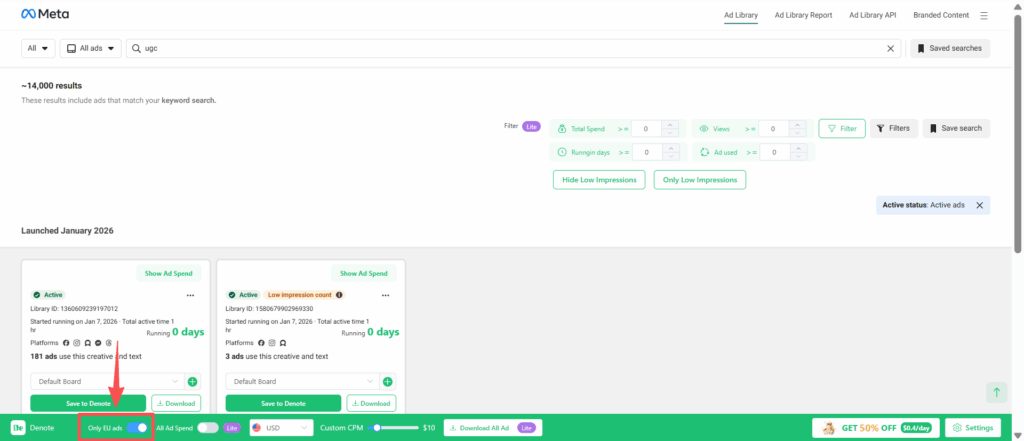
Ad Spend Supported Regions
Currently, Ad Spend data is only available for ads running in European Union (EU) countries. You can enable Only EU Ads to view ads that support ad spend data.
Use Filters to Find the Ads That Matter
When analyzing a large number of ads, not all of them are worth your time. Filters help you quickly remove irrelevant ads and focus only on the ones that match your research goals, whether you’re looking for long-running campaigns or specific spend levels.
Use filters to narrow down ads that match your criteria. Enter your conditions and click Filter to apply them, or click Reset to clear all filters at once.
Commonly used filters include:
- Total Spend
- Views
- Running Days
- Ad Used
- Hide Low Impressions / Only Low Impressions