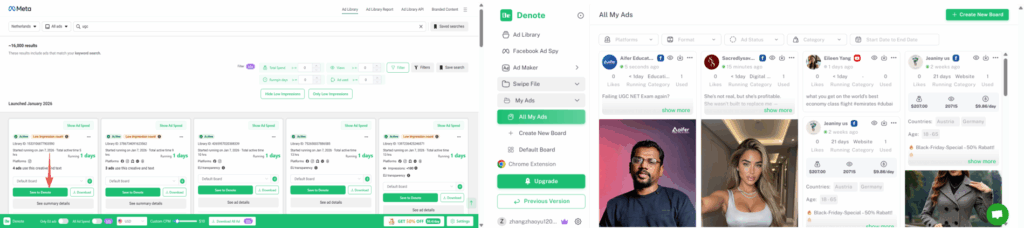

If you research Facebook ads regularly, you already know how hard it is to tell what actually works. Anyone can launch new ads. Anyone can test dozens of creatives. But very few ads get real budget behind them—and that’s where the signal is.
With the Denote Extension, you can see ad spend directly inside Facebook Ad Library. Instead of guessing which ads are just tests and which ones brands are actively scaling, you get a clearer picture of where money is actually being spent.
This guide walks you through how to use the Denote Extension to analyze ad spend, spot predictable spending patterns, and turn Facebook ad research into actionable insights you can use right away.
Ad Spend: See Where Brands Actually Spend Money
When researching Facebook ads, the real signal isn’t what brands test—it’s where they spend money. Ad Spend helps you identify ads that receive consistent budget, so you can focus on campaigns brands are actively scaling instead of short-lived tests.
Predictable Ad Spend
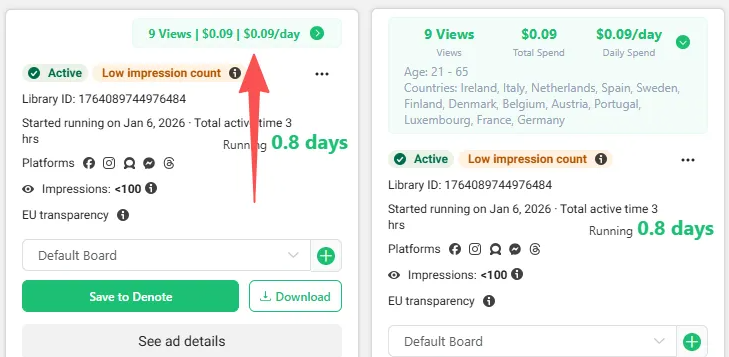
At the top of the ad details, you’ll see the Predictable Ad Spend indicator. Click the green bar to view more information, including the estimated ad spend and the number of views for each ad.
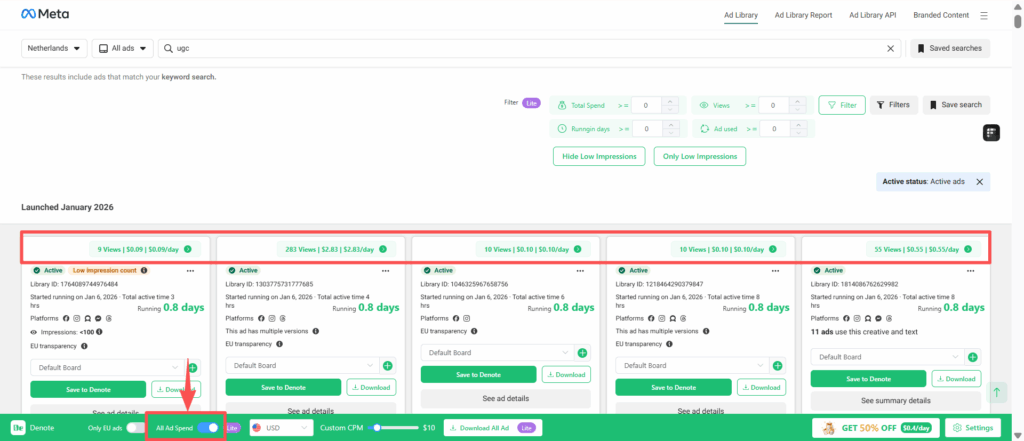
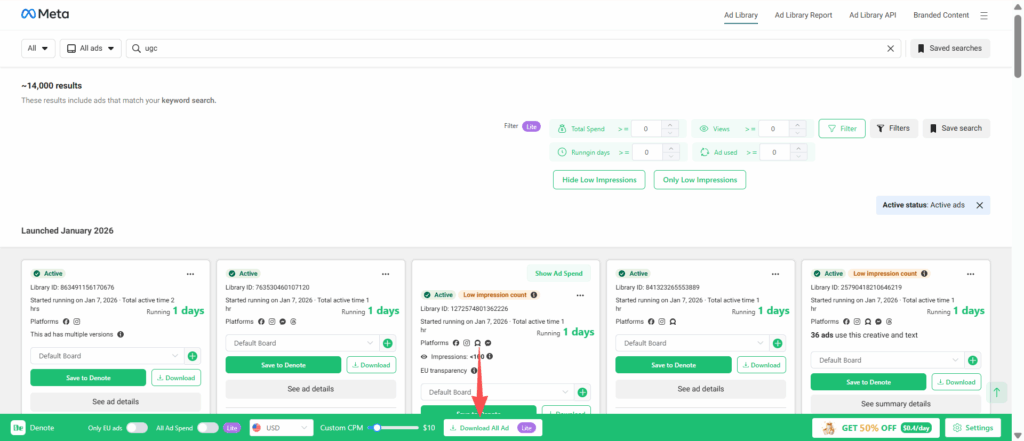
If you don’t want to click Show Ad Spend for each ad individually, Denote Extension makes it easy to see everything at once. Simply enable the option below, and all ad spends across your saved ads and brands will be displayed in a single view.
Custom CPM
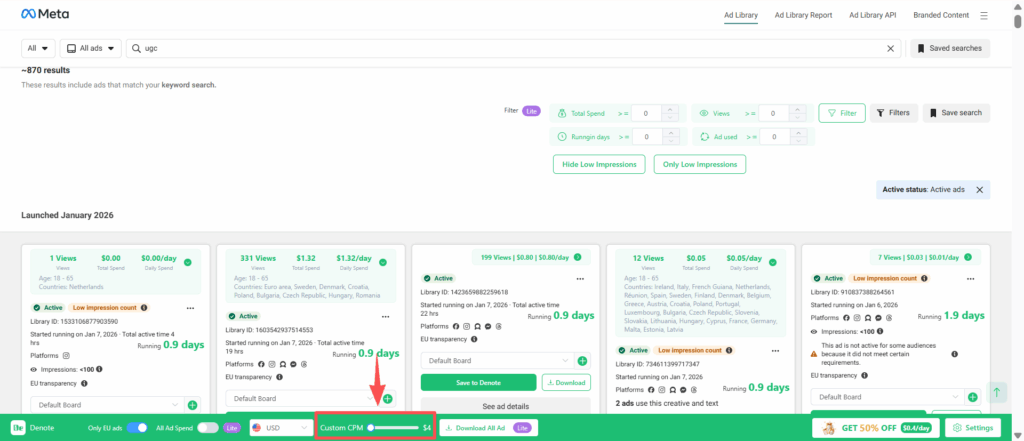
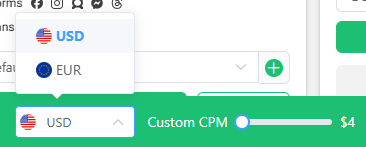
Custom CPM lets you simulate ad spend under different cost scenarios. By adjusting the Custom CPM slider, you can view the estimated total spend and daily spend at low, medium, and high cost levels, helping you evaluate whether an ad is worth running.
ou can also switch between two currencies: USD or EUR.
Ad Spend Supported Regions:Only EU Ads
Currently, Ad Spend data is only available for ads running in European Union (EU) countries. You can enable Only EU Ads to view ads that support ad spend data.
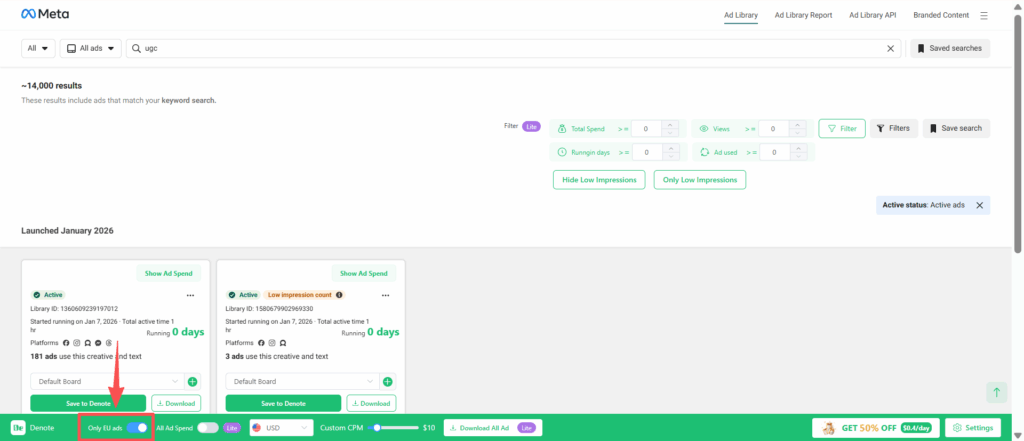
To learn more about this feature, read our guide on How to Use Ad Spend in the Denote Extension.
Filters: Cut Through the Noise and Focus on What Matters
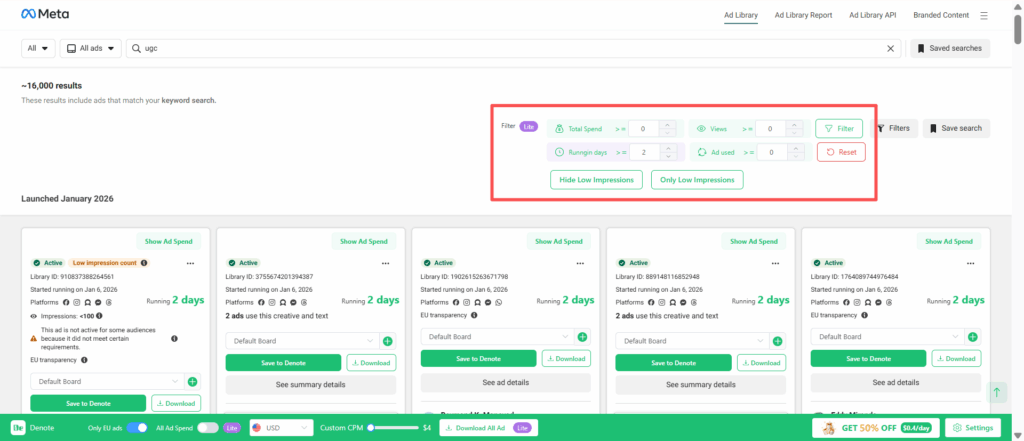
When analyzing a large number of ads, not all of them are worth your time. Filters help you quickly remove irrelevant ads and focus only on the ones that match your research goals, whether you’re looking for long-running campaigns or specific spend levels.
Use filters to narrow down ads that match your criteria. Enter your conditions and click Filter to apply them, or click Reset to clear all filters at once.
Commonly used filters include:
- Total Spend
- Views
- Running Days
- Ad Used
- Hide Low Impressions / Only Low Impressions
Download or Save Ads: Turn Research Into Assets You Can Reuse
Finding great ads is only useful if you can save and reuse them later. Downloading or saving ads allows you to turn one-off research into a reusable library for future campaigns, creative reviews, and team collaboration.
Download or Download All Ad
Click Download to save an individual image or video ad.
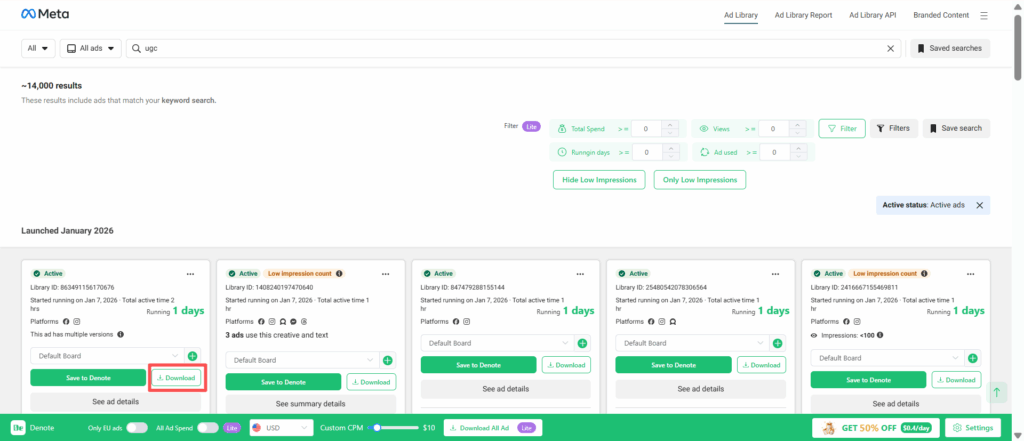
Alternatively, you can filter the ads you need first, then click Download All Ads to download all filtered creatives or all ads on the current page with one click.
Save Ads
If you want to save an ad, click Save to Denote, then click View Saved to find it later in Denote All My Ads.