.jpg)
TL;DR:
- There's no single "off" switch. Advantage+ is built into the Sales objective by default, not a toggle you can flip.
- Method 1 — Pause the campaign. Fastest option if you just want to stop delivery right now.
- Method 2 — Switch to Conversions or Traffic objective. Full manual control, but you lose Advantage+'s automated optimization and typically see higher CPA.
- Method 3 — Restrict Audience and Placement manually. Stay in the Sales objective, keep some automation, but claw back control over who and where you target.
- Same steps work for the old name — "Advantage+ Shopping Campaign" is the same system before Meta's 2025 rename.
- Before you disable anything, check whether the real issue is setup, not automation — see our best-practices guide.
You can't fully turn off Advantage+ Sales Campaign — it's the default automation layer for Sales, Leads, and App Promotion objectives in Meta Ads Manager. But you can get the same practical result through three workarounds: pausing the campaign, switching to a different objective, or restricting the audience and placement settings. Here's exactly how each one works.
Can You Actually Turn Off Advantage+ Sales Campaign?
Short answer: not as a single toggle, no.
Advantage+ Sales Campaign (formerly called Advantage+ Shopping Campaign, renamed by Meta in early 2025) isn't an add-on feature sitting on top of your campaign — it's built into the Sales objective itself. When you select "Sales" as your campaign objective in Ads Manager, Advantage+ Audience, Advantage+ Placements, and Advantage+ Campaign Budget are all enabled by default. There's no single switch labeled "Advantage+: Off."
If you searched for "how to turn off Advantage+ Shopping Campaign" and landed here, you're in the right place — it's the same underlying system under its old name.
What you actually get, when you go looking for a way to disable it, is one of three real options below. Which one you pick depends on what you're trying to fix: stop spend immediately, avoid Advantage+ altogether for a new campaign, or just dial back specific automation while staying inside the Sales objective.
3 Ways to "Turn Off" Advantage+ Sales Campaign
Which one to use depends on what you're actually trying to fix: stop spend immediately, avoid Advantage+ altogether going forward, or just dial back specific automation while staying inside the Sales objective.
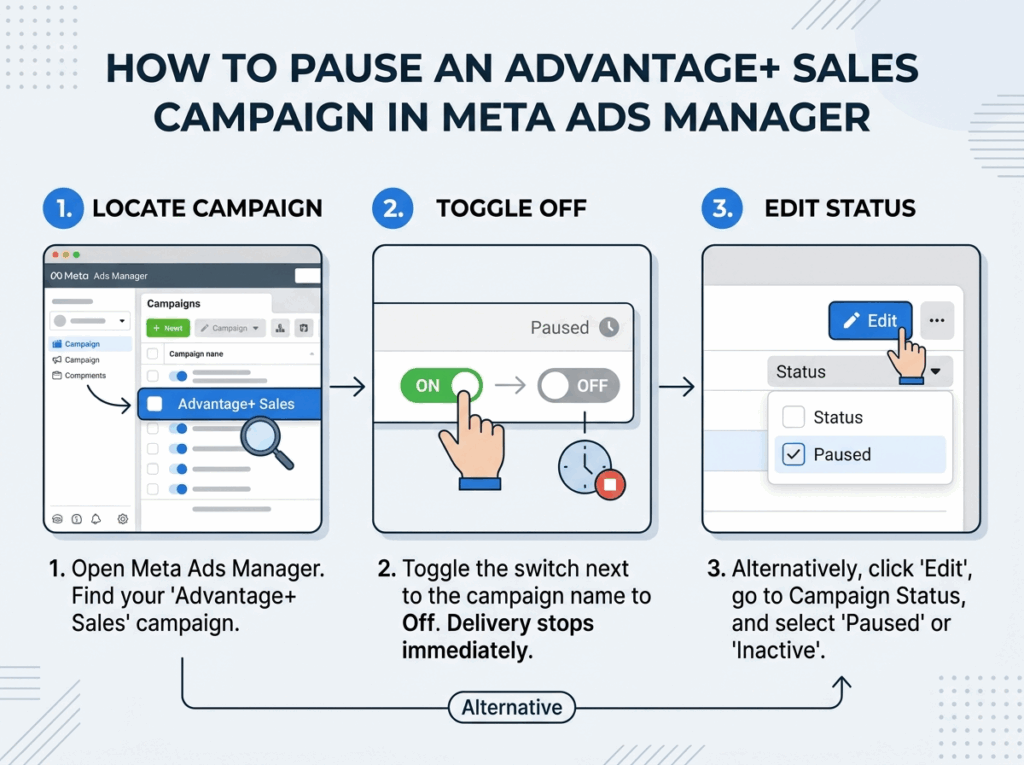
Method 1: Pause or Deactivate the Campaign
This is the fastest option if your goal is simply to stop delivery right now.
- Open Meta Ads Manager and locate the Advantage+ Sales campaign.
- Toggle the switch next to the campaign name to Off — this pauses delivery immediately.
- Alternatively, click into the campaign, select Edit, and change the campaign status to Paused or Inactive.
This stops ad spend and delivery, but it doesn't give you a manual campaign structure to fall back on — it just stops the automated one. If you want to keep running ads with more control, you need Method 2 or Method 3.
Method 2: Switch to a Different Campaign Objective
If what's bothering you is Advantage+ specifically — not wanting Meta's algorithm handling audience and placement decisions — the workaround is to build your campaign under a different objective rather than trying to strip Advantage+ out of Sales.
- Create a new campaign and choose Conversions or Traffic as the objective instead of Sales.
- Build ad sets manually: define your own audience, exclude Advantage+ Audience suggestions, and select placements yourself.
- Set your budget and bidding at the ad set level rather than using Advantage+ Campaign Budget.
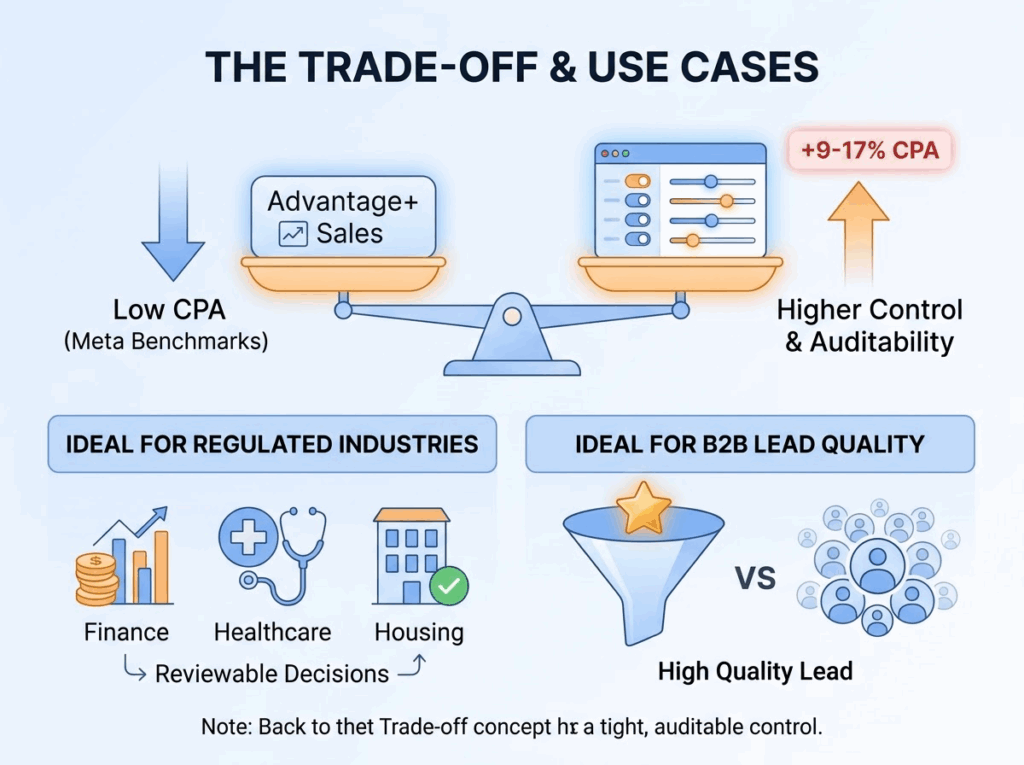
The trade-off: you lose the automated optimization Advantage+ provides, and Meta's own benchmarks suggest Advantage+ Sales campaigns run roughly 9-17% lower cost-per-acquisition versus manually structured setups. This route makes the most sense for advertisers who need tight, auditable control — regulated industries (finance, healthcare, housing, employment ads) where every targeting decision needs to be reviewable, or B2B accounts where lead quality control matters more than automated volume. Just be aware that once you're manual, the audience and creative research Advantage+ used to handle for you is now on you — worth knowing before you commit to this route.
Method 3: Restrict Advantage+ Audience and Placement Controls
This is the middle ground — you stay inside the Sales objective and keep some automation, but claw back manual control over specific pieces.
To restrict audience targeting:
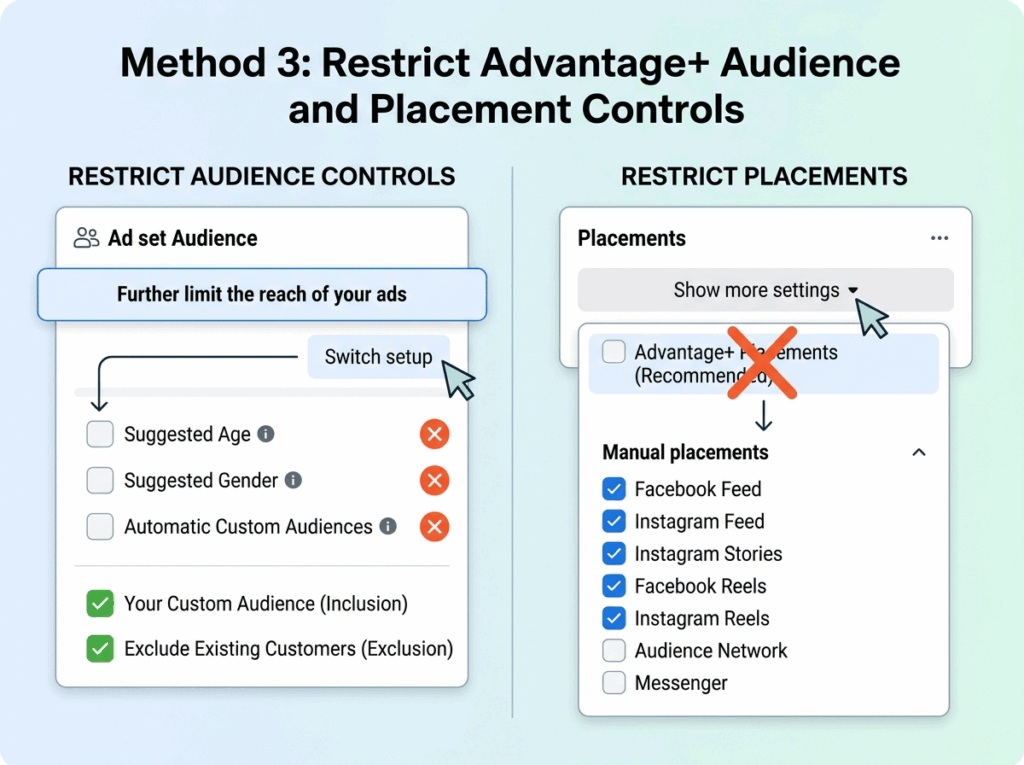
- In your ad set's Audience section, click Further limit the reach of your ads.
- Select Switch setup.
- Uncheck the suggested age, gender, and custom audience inclusions Meta has added automatically.
- Add back your own custom audiences or exclusions — for example, excluding existing customers if your goal is new-customer acquisition.
To restrict placements:
- In the Placements section, click Show more settings.
- Deselect Advantage+ Placements.
- Manually choose which placements to run on (Facebook Feed, Instagram Feed, Reels, Stories, etc.).
Keep in mind Meta will generally warn you that turning off these suggestions may limit performance — that's expected, since you're intentionally trading some algorithmic reach for control. This method is the one to use if your real complaint is a specific symptom (e.g., budget quietly shifting toward existing customers, or ads showing in placements that don't convert for your business) rather than a blanket objection to automation.
Going Manual? Something Advantage+ Was Doing for You Now Isn't
Whichever method you pick — a new manual objective, or just restricting audience and placement inside Sales — you're taking back a job Advantage+'s algorithm used to handle: figuring out which audiences and creative angles actually work. Advantage+ tests broadly and lets performance data sort it out. A manual setup doesn't have that built-in feedback loop, so you're starting closer to a blank page.
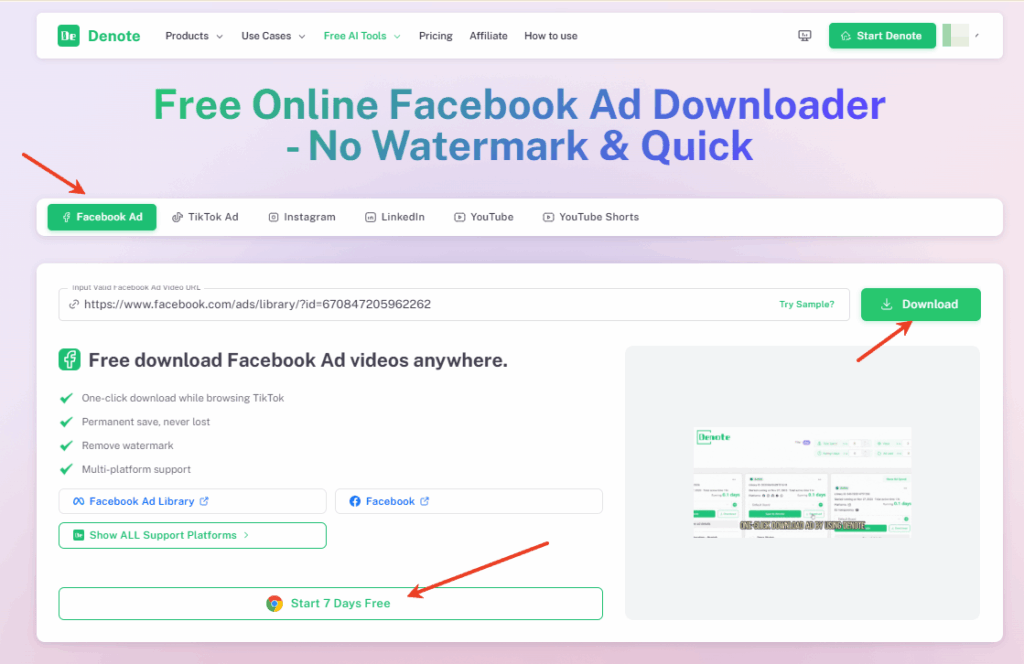
This is usually where competitor research earns its keep. Before you rebuild targeting or creative from scratch, it's worth checking what's already working for other advertisers in your category — which hooks, offers, and formats keep showing up. Denote lets you pull and save live ad creative from competitors across Facebook and TikTok, so a manual campaign isn't starting with guesswork about audience and angle — you've got a reference point for what to test first.
Why Advertisers Want to Turn This Off
A few reasons come up again and again when advertisers go looking for a way out of Advantage+ Sales:
- Performance volatility. ROAS and daily spend can swing more than advertisers are used to, especially compared to the older, more stable Advantage+ Shopping structure.
- Lead quality concerns. For B2B and high-ticket service businesses, automation tends to optimize for volume, which can mean a higher share of low-intent leads.
- Loss of visibility. Advertisers can't always see which signals Meta is prioritizing or why budget is shifting between ad sets — it can feel like a black box.
If any of these sound like your situation, it's worth reading a step further before you disable anything: in a lot of cases, the fix isn't turning Advantage+ off — it's setting it up correctly in the first place (existing-customer budget caps, creative volume, and measurement approach all matter more than most advertisers expect). We cover that in detail in our Advantage+ Shopping Campaigns Best Practices 2026 guide.
FAQ
Does turning off Advantage+ hurt performance?
It can. Meta's own data suggests Advantage+ Sales campaigns achieve meaningfully lower cost-per-acquisition than manual structures for most e-commerce accounts. Turning it off usually trades some efficiency for more control — worth it in some cases, not in others.
Can I fully disable Advantage+ across my whole ad account?
No. Advantage+ is the default architecture for Sales, Leads, and App Promotion objectives account-wide — there's no account-level setting to opt every campaign out permanently. You apply the workarounds above on a per-campaign basis.
What's the difference between pausing a campaign and switching objectives?
Pausing stops delivery immediately but doesn't replace the campaign with anything — you're just off. Switching objectives (Method 2) lets you keep running ads with full manual control, at the cost of losing Advantage+'s automated optimization.
How do I turn off Advantage+ Shopping Campaign — the old name?
Same steps as above. Meta renamed Advantage+ Shopping Campaigns to Advantage+ Sales Campaigns in early 2025, but the underlying system, and the workarounds for disabling parts of it, haven't changed.
Will turning off Advantage+ Placements reduce my reach?
Usually, yes, at least initially. Advantage+ Placements lets Meta serve your ad wherever it predicts the best results, so manually restricting placements narrows that pool. Meta will typically show a warning when you deselect it for this reason.
Can I turn off Advantage+ for Advantage+ Leads campaigns too?
Yes. Advantage+ Leads runs on the same underlying automation as Advantage+ Sales, so the same three methods apply — pause the campaign, build under a different objective, or restrict audience and placement settings manually.
Can I turn off Advantage+ Audience without switching my campaign objective?
Yes — that's Method 3. You don't need to leave the Sales objective to restrict audience settings; use "Further limit the reach of your ads" and switch to manual audience setup while keeping everything else as-is.
Can I change an active campaign's objective to turn off Advantage+?
No. Meta doesn't allow you to edit the objective of an existing campaign. You'll need to create a new campaign under Conversions or Traffic and rebuild your ad sets manually.
Can I turn off Advantage+ Sales Campaign from the Meta Business Suite mobile app?
Pausing a campaign works fine from mobile. For audience and placement restrictions, though, it's easier on desktop — the mobile app surfaces fewer of the manual override options.
Does turning off Advantage+ affect my existing-customer budget cap?
Restricting audience settings (Method 3) removes Meta's automatic existing-customer targeting entirely, so the budget cap setting becomes irrelevant — you're back to defining your own audience exclusions manually.
Bottom Line
There's no single "Advantage+: Off" switch — but pausing the campaign, switching objectives, or restricting audience and placement settings will get you there depending on what you actually need. If your concern is really about performance or control rather than automation itself, it's worth checking whether the issue is a setup problem before you disable anything.


